wheel TESLA MODEL S 2017 (UK) User Guide
[x] Cancel search | Manufacturer: TESLA, Model Year: 2017, Model line: MODEL S, Model: TESLA MODEL S 2017Pages: 186, PDF Size: 4.67 MB
Page 60 of 186

How Park Assist Works
Model S has several sensors designed to detect the presence of objects nearby. When
moving slowly in Drive or Reverse, the sensors
alert you if an object is detected in close proximity to the front and rear of your
Model S.
Note: Depending on date of manufacture and options selected at time of purchase, someModel S vehicles are not equipped with theparking sensors.Warning: The Park Assist images provided
below are representative only. The exact
number and location of sensors may vary
depending on the date your Model S was
manufactured.
The sensors are activated when driving less
than 5 mph (8 km/h).
Warning: Never depend on Park Assist to
inform you if an area you are approaching is free of objects and/or people. Several
external factors can reduce the
performance of Park Assist, causingeither no readings or false readings (see
Limitations and False Warnings on page
61). Therefore, depending on Park
Assist to determine if Model S is
approaching an obstruction can result in
damage to the vehicle and/or objects,
and can potentially cause serious injury. Always inspect the area with your own eyes. When reversing, perform shoulder
checks and use all mirrors. Park assist does not detect children, pedestrians,bicyclists, animals, or objects that are
moving, protruding, located too far above
or below the sensors, or too close or too far from the sensors. Park Assist is for
guidance purposes only and is not
intended to replace your own direct visual
checks. It is not a substitute for careful
driving.
Visual and Audio Feedback
When you shift to Reverse, the Park Assist
view displays on the left side of the instrument
panel, showing any objects that are in close
proximity to the front and rear of Model S.
This view closes when you shift into Drive
unless objects are detected close to the front
of the Model S, in which case the Park Assist
view closes automatically when your driving
speed exceeds 5 mph (8 km/h) . When
reversing, visual feedback also displays on the
touchscreen, immediately below the camera
view (see Rear View Camera on page 67).
You can manually close the park assist view on
the touchscreen by touching the X in the
upper left corner.
When driving with the Camera app displayed
on the touchscreen, you can switch to the
Park Assist view when driving at speeds below
5 mph (8 km/h) . Touch the button located in the upper left corner of the Camera app
window. This is useful if you need assistance with parallel parking.
If chimes are turned on (see Controlling
Audible Feedback on page 61), an audible
beep sounds as you approach an object. You
can temporarily mute the chime by pressing
the scroll wheel on the left side of the steering
wheel or by touching the mute button located
on the in the bottom left corner of the Park
Assist view.
Note: If Model S is equipped with software
version 6.1 or newer, and you are driving with
the camera app displayed on the touchscreen, you can switch to the Park Assist view by
touching the icon in the upper left corner of
Park Assist
60Model S Owner
Page 61 of 186

the camera app window. You must be drivingat speeds below 5 mph (8 km/h).
Note: If a sensor is unable to provide
feedback, the instrument panel displays an
alert message.Caution: Keep sensors clean from dirt,
debris, snow, and ice. Avoid using a high
pressure power washer on the sensors
and do not clean a sensor with a sharp or abrasive object that can scratch or
damage its surface.Caution: Do not install accessories or
stickers on or near the parking sensors.
Controlling Audible Feedback
You can use Park Assist with or without
audible feedback. To turn chimes on or
off,touch Controls > Settings > Safety & Security
> Park Assist Chimes .
You can also mute the chimes temporarily by
pressing the scroll wheel on the left side of the steering wheel or by touching the mute buttonin the bottom left corner of the Park Assist
view. The chimes are muted until you shift into a
different gear or drive over 5 mph (8 km/h).
Limitations and False Warnings
The parking sensors may not function
correctly in these situations:
Page 67 of 186

Camera Location
Model S is equipped with a rear view camera
located above the rear license plate.
Whenever you shift into Reverse, the
touchscreen displays the view from the
camera. Guide lines show your driving path
based on the position of the steering wheel. These guide lines adjust appropriately as you
move the steering wheel.
Note: Visual feedback from the parking
sensors displays below the camera image (see
Park Assist on page 60).
Note: Depending on date of manufacture and
options selected at time of purchase, some Model S vehicles are not equipped with
parking sensors.
Warning: Never depend on the rear view
camera to inform you if the area behind
you is free of objects and/or people when
reversing. The camera may not detect
objects or barriers that can potentially
cause damage or injury. In addition, several external factors can reduce the
performance of the camera, including a
dirty or obstructed lens. Therefore,
depending on the rear view camera to
determine if Model S is approaching an
obstruction can result in damage to the vehicle and/or objects, and can
potentially cause serious injury. Always
inspect the area with your own eyes.
When reversing, perform shoulder checks and use all mirrors. Use the camera forguidance purposes only. It is not intendedto replace your own direct visual checks
and is not a substitute for careful driving.
Cleaning the Camera
To ensure a clear picture, keep the camera lens clean, and free of obstructions. Remove any
buildup of dirt by occasionally wiping the
camera lens with a soft damp cloth.
Caution: Do not use chemical-based or abrasive cleaners. Doing so can damage
the surface of the camera lens.
Rear View Camera
Driving67
Page 76 of 186

Note: Autosteer is a BETA feature.
If Model S is equipped with Driver Assistance
components (see About Driver Assistance on
page 68), and you have purchased the
optional Autopilot Tech Package, you can use
Autosteer to manage steering and speed under certain circumstances. Autosteer builds
upon
Traffic-Aware Cruise Control,
intelligently keeping Model S in its driving lane
when cruising at a set speed. Using the
forward looking camera, the radar sensor, and
the ultrasonic sensors, Autosteer detects lane
markings and the presence of vehicles and
objects, assisting you in steering Model S
based on the lane markings and the vehicle
directly in front of you.
Warning: Autosteer is a hands-on feature.
You must keep your hands on the steering
wheel at all times.Warning: Autosteer is intended for use
only on highways and limited-access
roads with a fully attentive driver. When using Autosteer, hold the steering wheel
and be mindful of road conditions and
surrounding
traffic. Do not use Autosteer
on city streets, in construction zones, or
in areas where bicyclists or pedestrians
may be present. Never depend on
Autosteer to determine an appropriate driving path. Always be prepared to take
immediate action. Failure to follow these instructions could cause serious property
damage, injury or death.
Operating Autosteer
Before you can operate Autosteer, you must
enable it by touching Controls > Settings > Driver Assistance > Autosteer > Enable .
To indicate that Autosteer is available (but not actively steering Model S), the instrument
panel displays a gray Autosteer icon on the right side of the driving speed as shown here:
To initiate Autosteer, pull the cruise control
lever toward you twice in quick succession. Autosteer
briefly displays a message on the
instrument panel reminding you to pay
attention to the road and have your hands on
the steering wheel. To indicate that Autosteer
is now actively assisting in steering Model S, the instrument panel displays the Autosteericon in blue. When Autosteer is able to detectlane markings, it also displays the driving lane
in blue:
Note: In situations where Autosteer is unable
to detect lane markings, the driving lane is
determined based on the vehicle you are
following. In these situations, the car in front
of you is highlighted in blue.
Note: To initiate Autosteer, you must be
driving at least 5 mph (8 km/h) on a roadway
with visible lane markings. If a vehicle is
detected ahead of you, you can initiate
Autosteer at any speed, even when stationary.
Note: In most cases, Autosteer attempts to
center Model S in the driving lane. However, if
the sensors detect the presence of an obstacle (such as a vehicle or guard rail), Autosteer
may steer Model S in a driving path that is
offset from the center of the lane.
Note: In situations where you attempt to
engage Autosteer, but you are not driving
within the required driving speed for Autosteer to operate, or Autosteer is not
receiving adequate data from the camera or
sensors, a message displays on the instrument
panel indicating that Autosteer is temporarily
unavailable.
Autosteer
76Model S Owner
Page 77 of 186

Restricted Speed
Autosteer is intended for use on freeways and
highways where access is limited by entry and
exit ramps. When using Autosteer on residential roads, a road without a centerdivider, or a road where access is not limited,
Autosteer limits the driving speed. Keep in
mind however, that Autosteer is intended for
use only on highways and limited-access roads
with a fully attentive driver. The maximum
driving speed is calculated based on the
detected speed limit plus 5 mph (10 km/h). In situations where the speed limit cannot be
detected, speed is limited to 45 mph
(70 km/h). When Autosteer is engaged in
these situations, it reduces your driving speed
and your set speed to be within these limits.
You can manually accelerate to exceed the
limited speed, but when you release the
accelerator pedal, Autosteer slows Model S to
the limited speed. When you leave the road, or disengage Autosteer by using the steeringwheel, you can increase your set speed again,if desired.
Hold Steering Wheel
Autosteer uses data from the camera, sensors, and GPS to determine how best to assist you
in steering Model S. When active, Autosteer
requires you to hold the steering wheel. If it
does not detect your hands on the steering wheel for a period of time, a
flashing white
light appears around the instrument panel and
the following message is displayed on the instrument panel:
Autosteer detects your hands by recognizing
light resistance as the steering wheel turns or
from you manually turning the steering wheel very lightly (i.e., without enough force toretake control). When your hands are
detected, the message disappears and Autosteer resumes normal operation.
Note: Autosteer may also sound a chime at
the same time that the message is initially
displayed.
Autosteer requires that you pay attention to your surroundings and remain prepared totake control at any time. If Autosteer still doesnot detect your hands on the steering wheel,the request escalates by sounding chimes that
increase in frequency.
If you repeatedly ignore hands-on prompts,
Autosteer displays the following message and
becomes disabled for the rest of the drive. If
you don
Page 82 of 186
Note: If you press the brake when Autopark is
actively parking Model S, the parking process pauses until you press the Resume button onthe touchscreen.
Note: Autopark detects potential
perpendicular parking spaces that are at least
9.5 feet (2.9 meters) wide with a vehicle
parked on each side. Autopark detects parallelparking spaces that are at least 20 feet (6
meters), but less than 49 feet (15 meters) long.
Autopark does not operate on angled parking spaces.Warning: Never depend on Autopark tofind a parking space that is legal, suitable,
and safe. Autopark may not always detect
objects in the parking space. Always
perform visual checks to
confirm that a
parking space is appropriate and safe.
Warning: When Autopark is actively
steering Model S, the steering wheel
moves in accordance with Autopark
Page 97 of 186

5. Volume controlTouch the up and down arrows to increase or decrease the volume of the speakers. You can
also adjust the volume using the scroll wheel on the left side of the steering wheel.
6. Climate controls (see Climate Controls on page 105).
7. Controls
Touch to access all Model S controls and settings (doors, locks, lights, etc).
8. Reverse the position of the two currently displayed apps.Warning: Paying attention to road and traffic conditions must always be the driver
Page 105 of 186
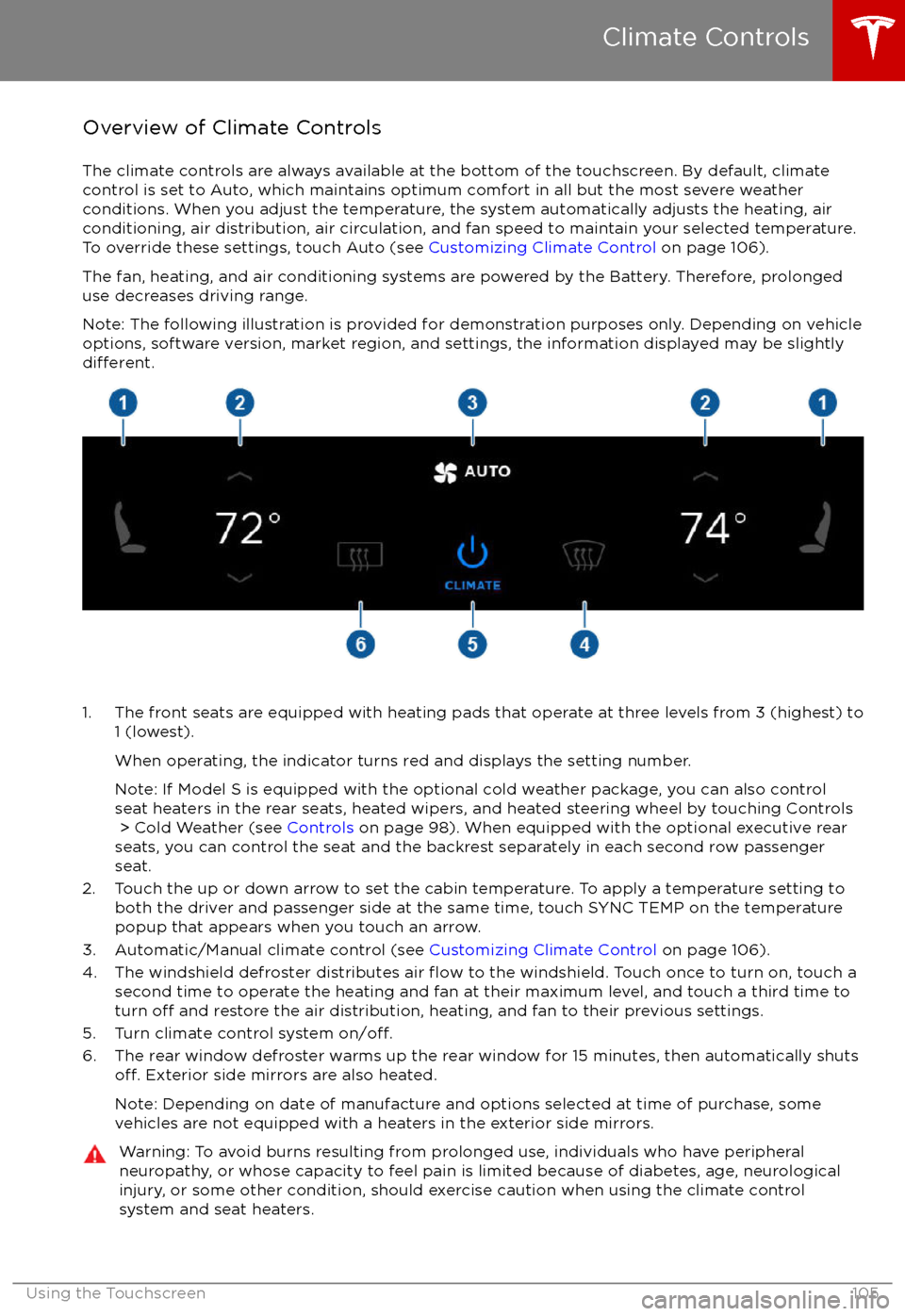
Overview of Climate Controls
The climate controls are always available at the bottom of the touchscreen. By default, climate control is set to Auto, which maintains optimum comfort in all but the most severe weather conditions. When you adjust the temperature, the system automatically adjusts the heating, air
conditioning, air distribution, air circulation, and fan speed to maintain your selected temperature. To override these settings, touch Auto (see Customizing Climate Control on page 106).
The fan, heating, and air conditioning systems are powered by the Battery. Therefore, prolonged
use decreases driving range.
Note: The following illustration is provided for demonstration purposes only. Depending on vehicle
options, software version, market region, and settings, the information displayed may be slightly
different.
1. The front seats are equipped with heating pads that operate at three levels from 3 (highest) to
1 (lowest).
When operating, the indicator turns red and displays the setting number.
Note: If Model S is equipped with the optional cold weather package, you can also control seat heaters in the rear seats, heated wipers, and heated steering wheel by touching Controls > Cold Weather (see Controls on page 98). When equipped with the optional executive rear
seats, you can control the seat and the backrest separately in each second row passenger
seat.
2. Touch the up or down arrow to set the cabin temperature. To apply a temperature setting to both the driver and passenger side at the same time, touch SYNC TEMP on the temperaturepopup that appears when you touch an arrow.
3. Automatic/Manual climate control (see Customizing Climate Control on page 106).
4. The windshield defroster distributes air
flow to the windshield. Touch once to turn on, touch a
second time to operate the heating and fan at their maximum level, and touch a third time to
turn
off and restore the air distribution, heating, and fan to their previous settings.
5. Turn climate control system on/off.6. The rear window defroster warms up the rear window for 15 minutes, then automatically shutsoff. Exterior side mirrors are also heated.
Note: Depending on date of manufacture and options selected at time of purchase, some vehicles are not equipped with a heaters in the exterior side mirrors.
Warning: To avoid burns resulting from prolonged use, individuals who have peripheral neuropathy, or whose capacity to feel pain is limited because of diabetes, age, neurologicalinjury, or some other condition, should exercise caution when using the climate control
system and seat heaters.
Climate Controls
Using the Touchscreen105
Page 115 of 186
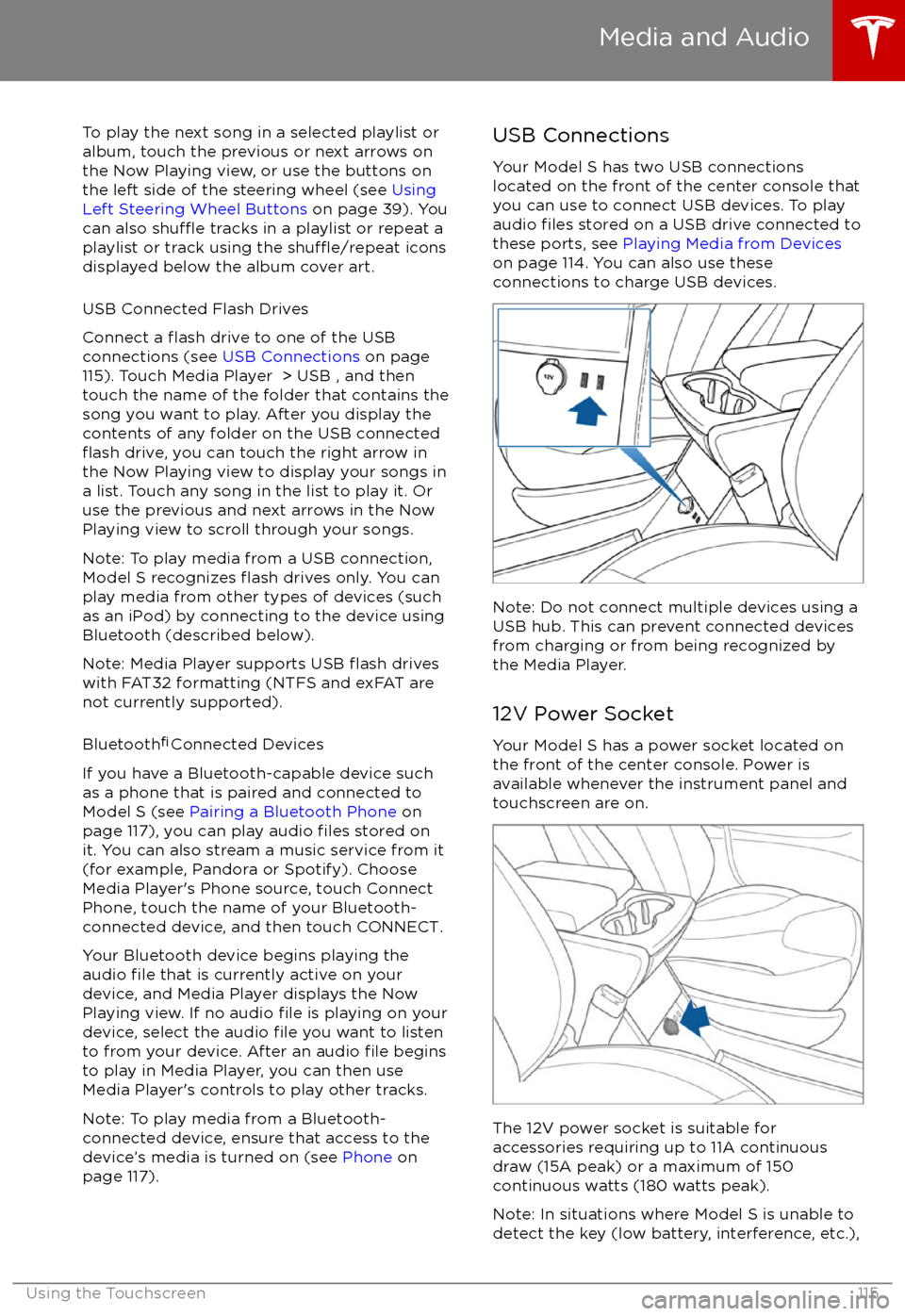
To play the next song in a selected playlist or
album, touch the previous or next arrows on
the Now Playing view, or use the buttons on
the left side of the steering wheel (see Using
Left Steering Wheel Buttons on page 39). You
can also
shu
Page 140 of 186

Inspecting and Maintaining TiresRegularly inspect the tread and side walls for
any sign of distortion (bulges), cuts or wear.Warning: Do not drive Model S if a tire is
damaged, excessively worn, or inflated to
an incorrect pressure. Check tires
regularly for wear, and ensure there are
no cuts, bulges or exposure of the ply/
cord structure.
Tire Wear
Adequate tread depth is important for proper
tire performance. Tires with a tread depth less
than 4/32” (3 mm) are more likely to
hydroplane in wet conditions and should not
be used. Tires with a tread depth less than
5/32” (4 mm) do not perform well in snow and
slush and should not be used when driving in
winter conditions.
Model S is originally
fitted with tires that have
wear indicators molded into the tread pattern. When the tread has been worn down to 4/32”(3 mm), the indicators start to appear at thesurface of the tread pattern, producing the
effect of a continuous band of rubber across
the width of the tire. For optimal performance and safety, Tesla recommends replacing tires
before the wear indicators are visible.
Tire Rotation, Balance, and Wheel Alignment
Tesla recommends rotating the tires every
6250 miles (10,000 km).
Unbalanced wheels (sometimes noticeable as
vibration through the steering wheel)
affectvehicle handling and tire life. Even with regular
use, wheels can get out of balance. Therefore,
they should be balanced as required.
If tire wear is uneven (on one side of the tire
only) or becomes abnormally excessive, check
the alignment of wheels.
Note: When replacing only two tires, always
install the new tires on the rear.
Punctured Tires
A puncture eventually causes the tire to lose pressure, which is why it is important to check
tire pressures frequently. Permanently repair
or replace punctured or damaged tires as
soon as possible.
Your tubeless tires may not leak when
penetrated, provided the object remains in the tire. If, however, you feel a sudden vibration or
ride disturbance while driving, or you suspect a tire is damaged, immediately reduce yourspeed. Drive slowly, while avoiding heavy
braking or sharp steering and, when safe to do so, stop the vehicle. Arrange to have Model S
transported to a Tesla service center, or to a
nearby tire repair center.
Note: In some cases, you can temporarily
repair small tire punctures (under 1/4” (6
mm)) using an optional tire repair kit available
from Tesla. This allows you to slowly drive
Model S to Tesla or to a nearby tire repair
facility (see Temporary Tire Repair on page
145).Warning: Do not drive with a punctured
tire, even if the puncture has not causedthe tire to
deflate. A punctured tire candeflate suddenly at any time.
Flat Spots
If Model S is stationary for a long period in
high temperatures, tires can form
flat spots.
When Model S is driven, these flat spots cause
a vibration which gradually disappears as the
tires warm up and regain their original shape.
To minimize
flat spots during storage, inflatetires to the maximum pressure indicated on the tire wall. Then, before driving, release airto adjust tire pressure to the recommended
levels.
Improving Tire Mileage
To improve the mileage you get from your
tires, maintain tires at the recommended tire
pressures, observe speed limits and advisory
speeds, and avoid: